

Burned-in subtitles are part of the picture itself. There is no subtitle track to switch off and no "remove subtitles" button in a normal editor – which is why people usually crop the frame or blur a bar over the text.
There is a cleaner way. In this tutorial we take a real clip that has fixed on-screen subtitles and remove them completely with Looep video repair, leaving the background sharp.
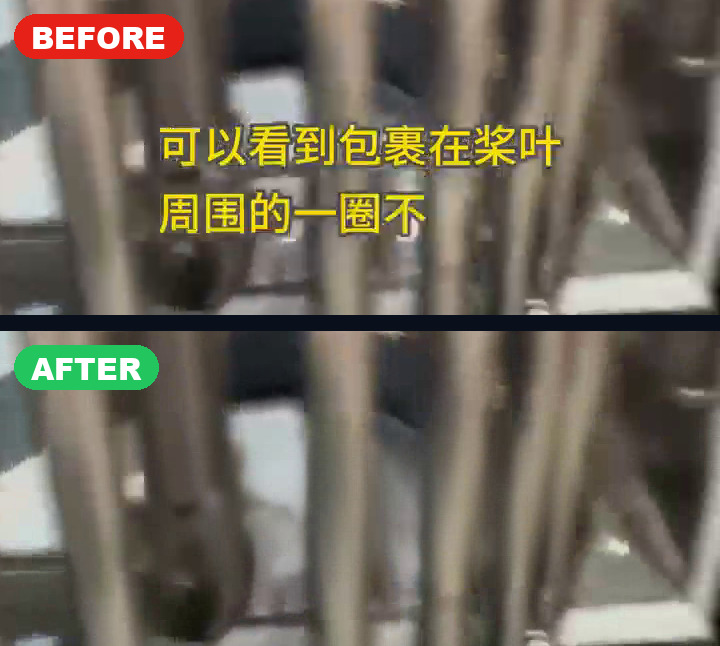
What you need
- Looep video repair for Windows – download it here
- The video with the burned-in subtitles
- A GPU is recommended, but the software also runs on CPU
When to use this method
Use the process below when the subtitle stays in the same place the whole time – a fixed subtitle bar, a lower-third, a channel logo or a static watermark.
If the watermark moves around the frame during the clip, use the Moving watermark tab instead, and let the software track the path.
Step 1 – Open the video
Start Looep video repair and click Open video in the bottom bar, then pick your clip. The first frame appears in the preview.
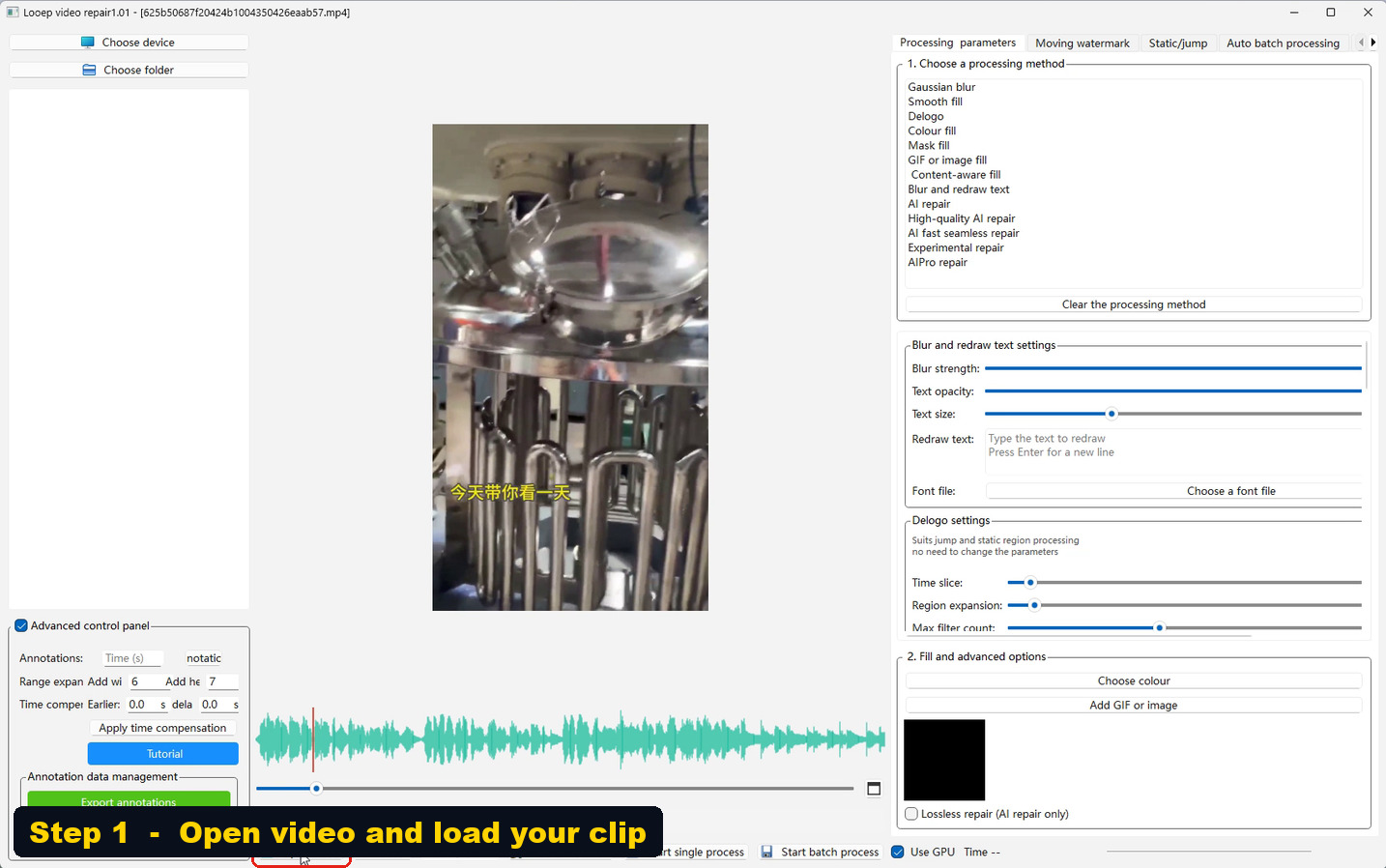
Scrub along the timeline to check that the subtitle really does stay in one place. That single check decides which tab you should be using.
Step 2 – Choose the processing method
Go to the Processing parameters tab and pick AIPro repair in the "1. Choose a processing method" list.
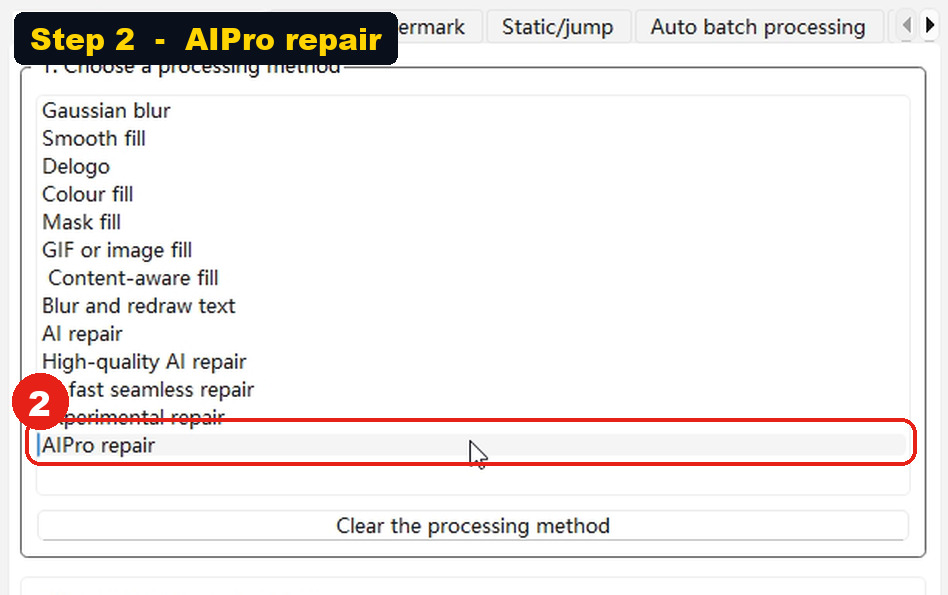
AIPro repair is the one-pass method built for text with no background colour – exactly what a burned-in subtitle is. It reconstructs the pixels behind the text instead of blurring them.
Step 3 – Switch to Static/jump and start the detection
Open the Static/jump tab and click Subtitle removal detection.
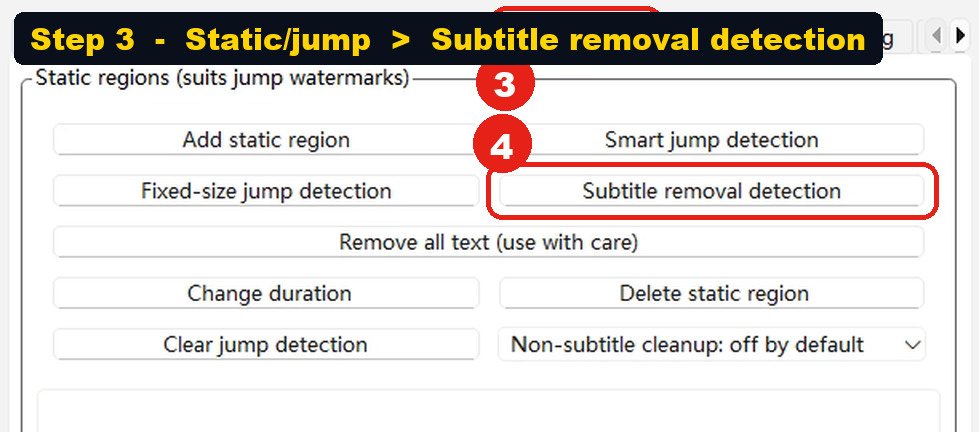
A short help window explains what happens next: you draw one or more rectangular regions on the picture, and only the text inside those regions is detected.
Step 4 – Box the subtitle band
Click and drag a rectangle over the subtitle area. Draw it a little wider and taller than the text – every line has to be inside the box.
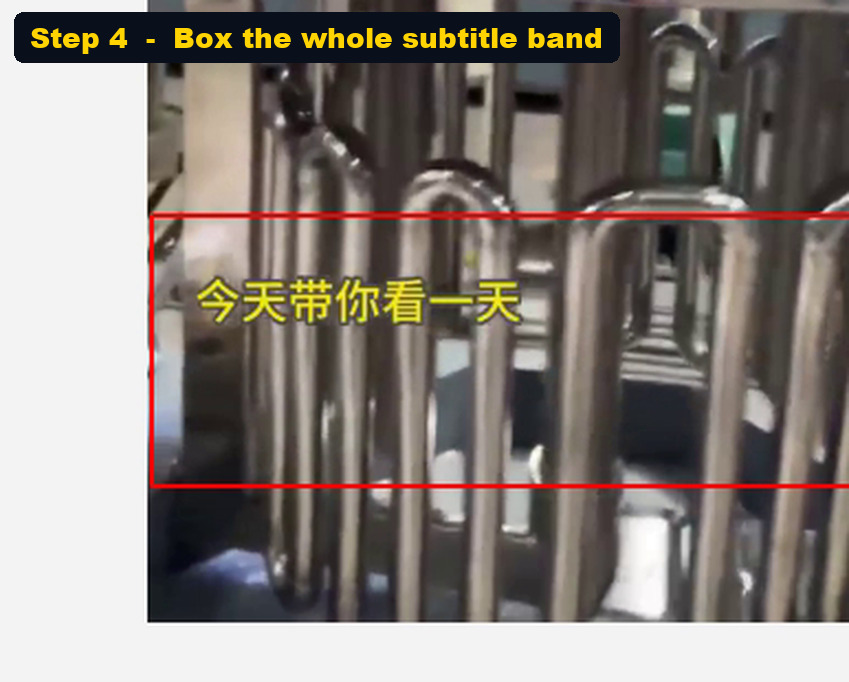
When you release the mouse, the software asks whether you want to add another region. Click No to start the detection with the one you just drew.
If your subtitles appear in two separate places – say a lower-third and a corner logo – click Yes and draw the second box as well.
Step 5 – Set the detection interval and the time compensation
Three small dialogs appear in a row. These are the values we use:
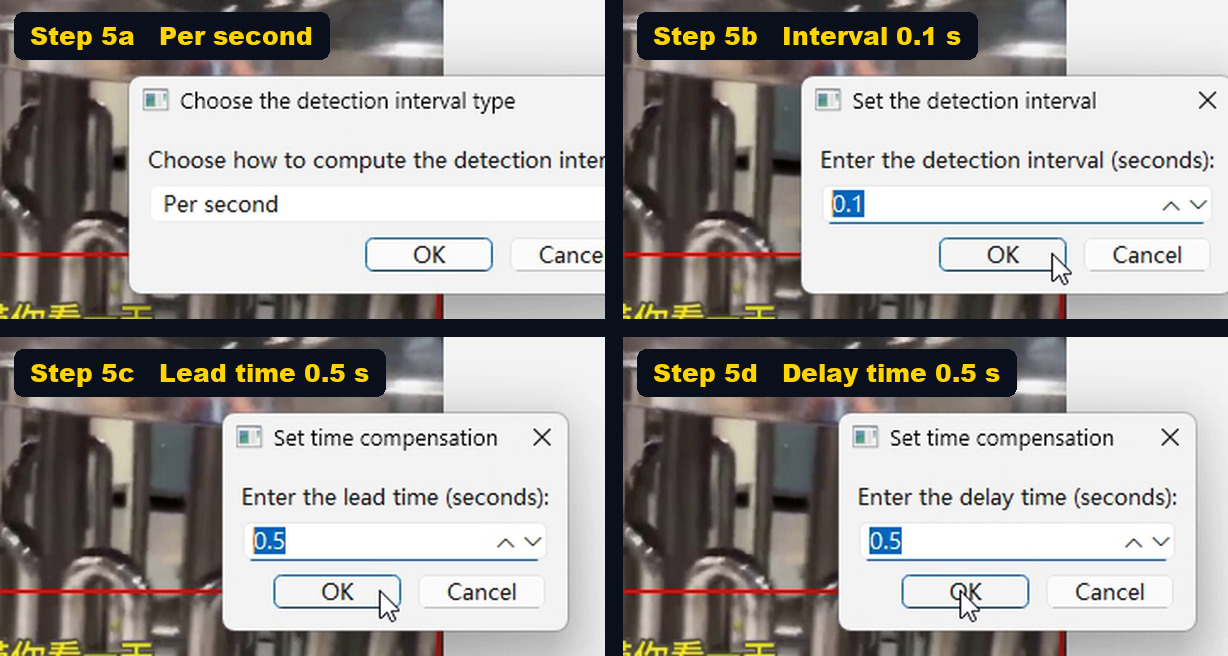
| Setting | Value | What it does |
|---|---|---|
| Interval type | Per second | Counts the interval in seconds, so the same numbers work on any video |
| Detection interval | 0.1 s | Checks the subtitle area ten times a second – tight enough not to miss a line |
| Lead time | 0.5 s | Starts removing each subtitle a little before it appears |
| Delay time | 0.5 s | Keeps removing it a little after it disappears |
The two compensation values are the safety margin. Subtitles fade in and out, so the exact frame where the text is fully visible is later than it looks – 0.5 s on each side covers that, and costs you nothing in quality.
Step 6 – Check what was detected
When detection finishes, a message tells you how many frames were processed, and the region list fills up with every subtitle it found.
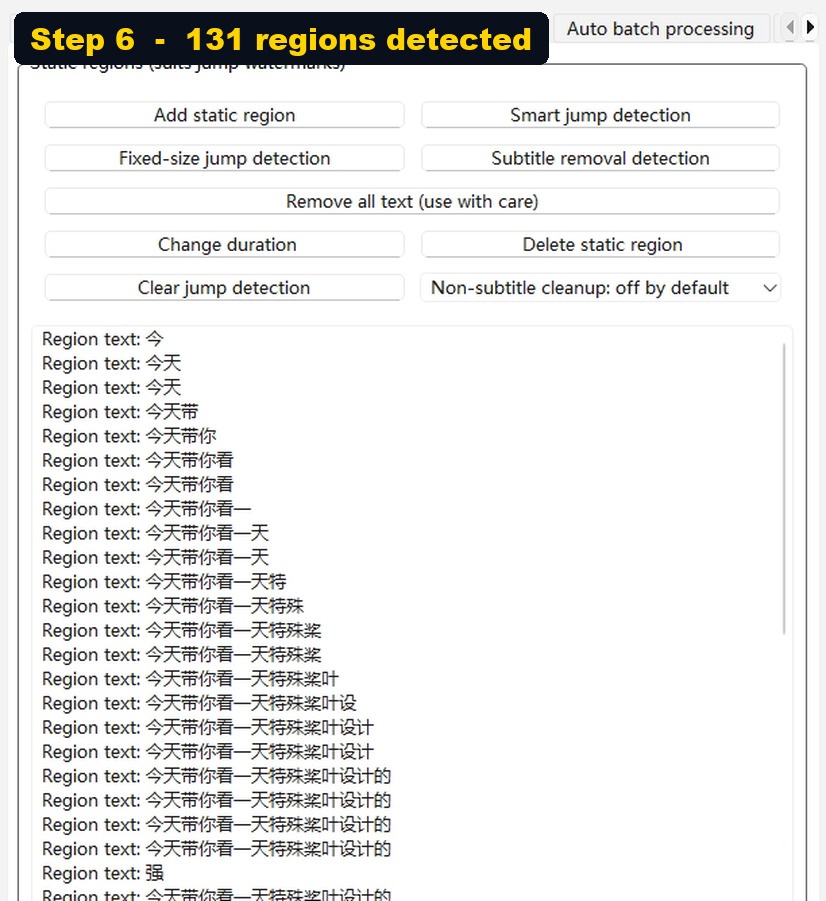
In this clip it found 131 separate subtitle regions across the video. Scroll the list to spot-check it: every entry is a moment in the clip where text was found.
If the list is far shorter than you expected, the box was too tight – start the detection again and draw it wider.
Step 7 – Start processing
Click Start single process in the bottom bar.

The progress bar in the bottom-right shows the AI inference running. This clip was processed on a GPU in a few seconds; a longer video simply takes longer.
Step 8 – Check the result
Open the finished file (Open video, then pick the file whose name ends in -AIPro修复 – it is written next to your source clip).
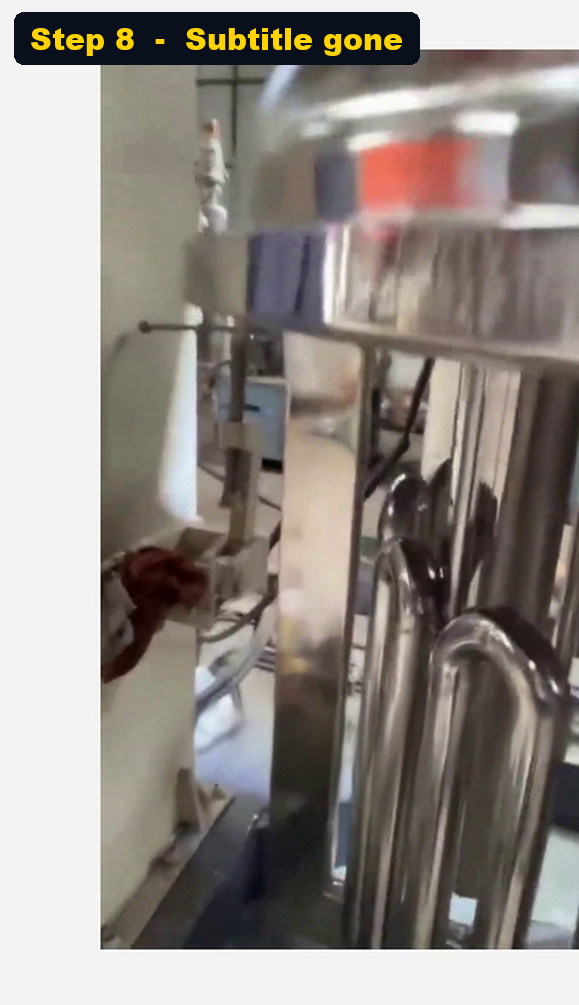
The subtitles are gone and the background behind them is reconstructed, not smeared.
Settings recap
Copy these values for a fixed subtitle bar:
- Processing method: AIPro repair
- Tab: Static/jump
- Feature: Subtitle removal detection
- Interval type: Per second
- Detection interval: 0.1 s
- Lead time: 0.5 s
- Delay time: 0.5 s
Troubleshooting
Part of a subtitle is still visible. The box was too tight. Redraw it so every line sits well inside the rectangle, and include the gap between lines.
The result looks soft behind the text. Check that AIPro repair is the selected method – the blur, fill and delogo methods only hide the text, they do not rebuild the picture.
The subtitle appears in a second spot later in the video. Add a second region when the software asks, or re-run the detection with both boxes.
The text moves during the clip. Use the Moving watermark tab. The static workflow assumes the text stays put.
FAQ
Does it upload my video anywhere? No. The processing runs locally on your own machine.
Can it remove subtitles from a vertical or square video? Yes. The regions are stored as proportions of the frame, so the same box works on any resolution.
Will it work on a lower-third, logo or channel bug? Yes – anything that sits still on the picture. Draw the box around it and run the detection.
Do I need to re-encode the video afterwards? The software writes a finished video file for you, ready to upload.
Everything shown here is in Looep video repair. Get the software and the full guide:
https://www.looep.com/looep-video-repair
